How to use the CGPA calculator
A step-by-step guide with pictures. The numbers on each picture match the list under it.
تصویروں کے ساتھ مکمل رہنمائی — ہر تصویر کے نمبر نیچے دی گئی فہرست سے ملتے ہیں۔
Step 1
Choose your university
ہوم پیج پر اپنی یونیورسٹی کا کارڈ چنیں اور «Open calculator» دبائیں۔
Every university has its own calculator, because each one grades differently.
- Open the home page and find "Pick your university".
- Press "Open calculator" on your university's card. You can also use GCUF, UAF or GCWUF in the menu at the top.
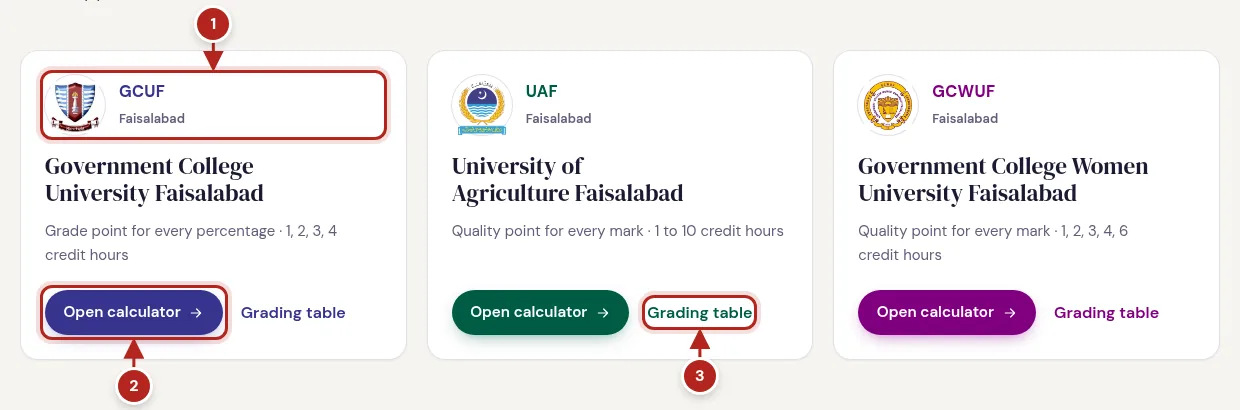
- Your university's card
- Opens its calculator
- Its full grading table
Step 2
Semester GPA from your marks
ہر مضمون کے کریڈٹ آورز چنیں اور حاصل کردہ نمبر لکھیں — جی پی اے ساتھ ساتھ بنتا جائے گا۔
The most exact way: your obtained marks in each course.
- Stay on the "Semester GPA" tab and keep "Marks" selected.
- For each course, choose its credit hours. The total marks fill in by themselves (20 marks for each credit hour); change them if your course is marked out of something else.
- Type your obtained marks. Each course shows its grade and points at once.
- Your semester GPA, credit hours and total points appear in the result card as you type.
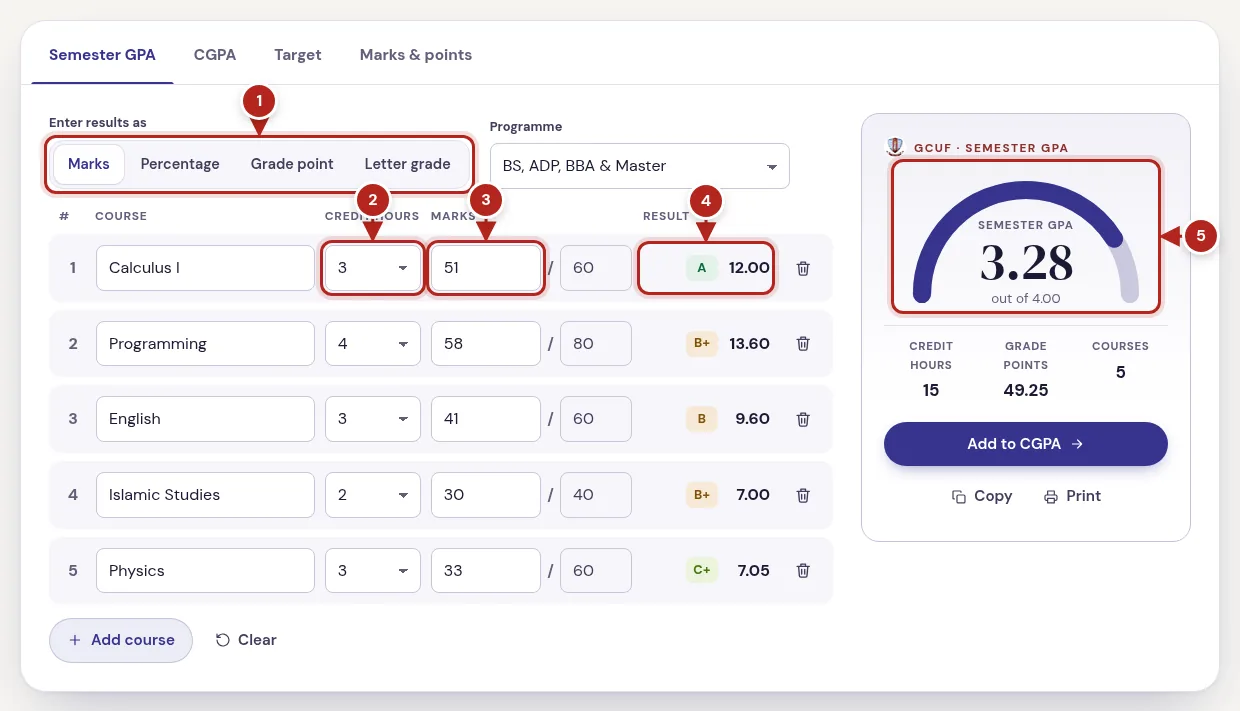
- Choose how you enter results
- Credit hours of the course
- Your obtained marks
- Grade and points of that course
- Your semester GPA
Step 3
Percentage, grade points or letter grades
نمبر یاد نہیں؟ فیصد، گریڈ پوائنٹ یا لیٹر گریڈ سے بھی حساب ہو سکتا ہے۔
Don't have your marks? Use what your result card shows.
- "Percentage": type your percentage in each course.
- "Grade point" (GCUF) or "Quality points" (UAF, GCWUF): type the points printed on your result for that course.
- "Letter grade": pick each grade. A letter covers many marks, so you get the lowest and highest GPA your letters can make.
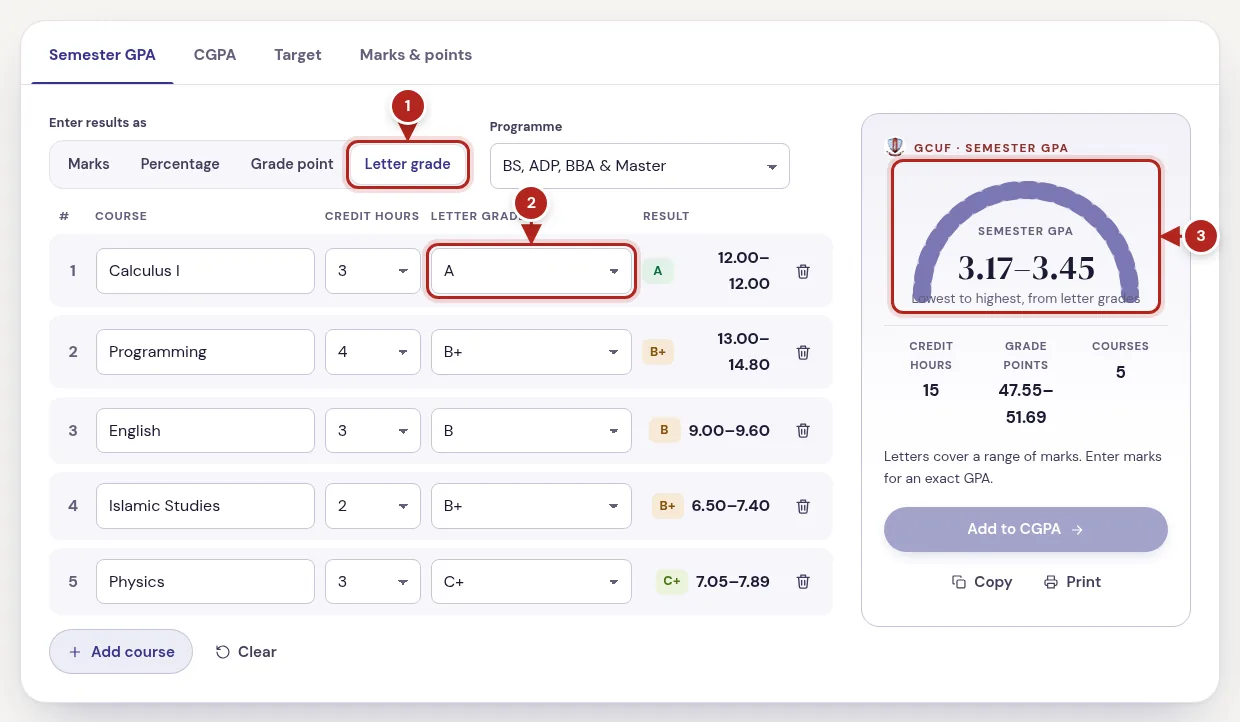
- Letter grade selected
- Pick each grade
- Your GPA as a range
Step 4
Add, remove and keep your courses
مضمون بڑھائیں یا ہٹائیں؛ آپ کا ڈیٹا صرف اسی ڈیوائس پر محفوظ رہتا ہے۔
The calculator remembers your courses on this device.
- "Add course" adds a row; the bin button on a row removes it.
- Course names are optional; they help on the printed slip.
- Everything is saved in your browser, so it is still there next time. "Clear" empties the calculator.
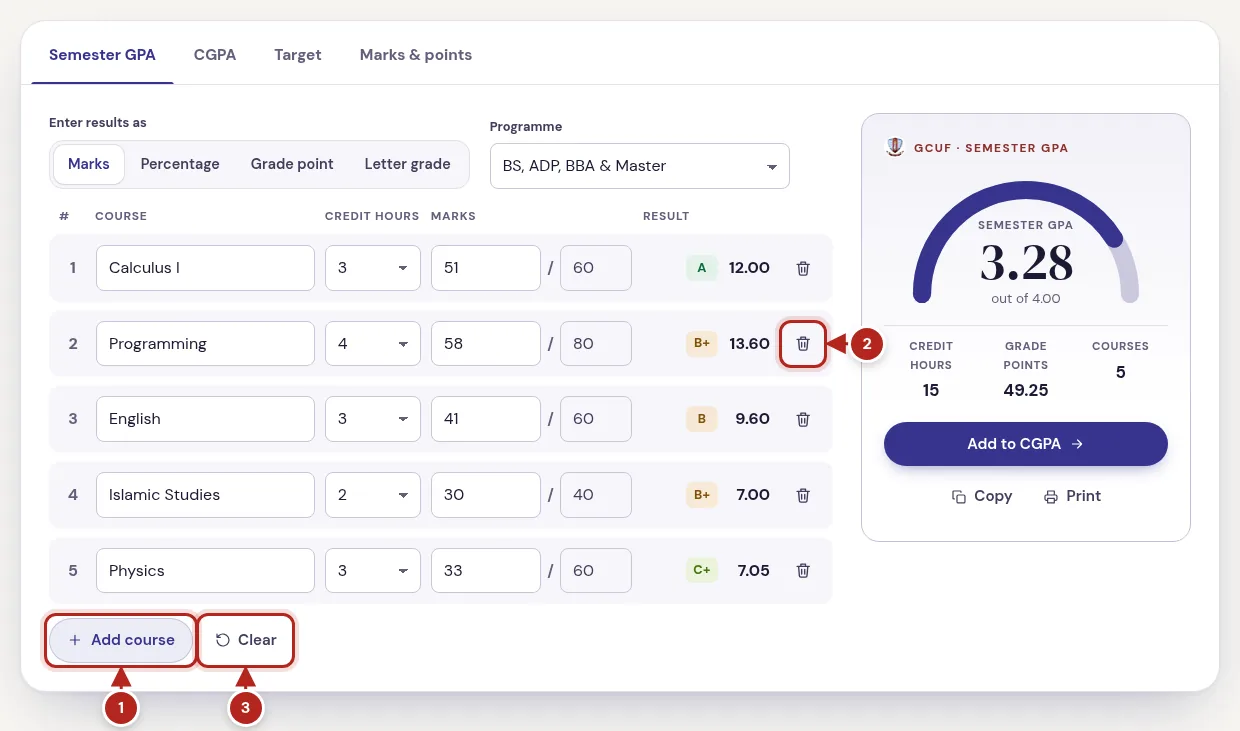
- Add another course
- Remove a course
- Empty the calculator
Step 5
CGPA from your semesters
ہر سمسٹر کا جی پی اے اور کریڈٹ آورز لکھیں، آپ کا سی جی پی اے سامنے آ جائے گا۔
Combine every semester into your cumulative GPA.
- Open the "CGPA" tab and keep "Semester by semester".
- Enter each semester's GPA and credit hours. "Add this semester" brings in the GPA you just worked out in the Semester GPA tab.
- Your CGPA shows on the right, with what your university's rules say about it (probation, degree CGPA) where it publishes them.
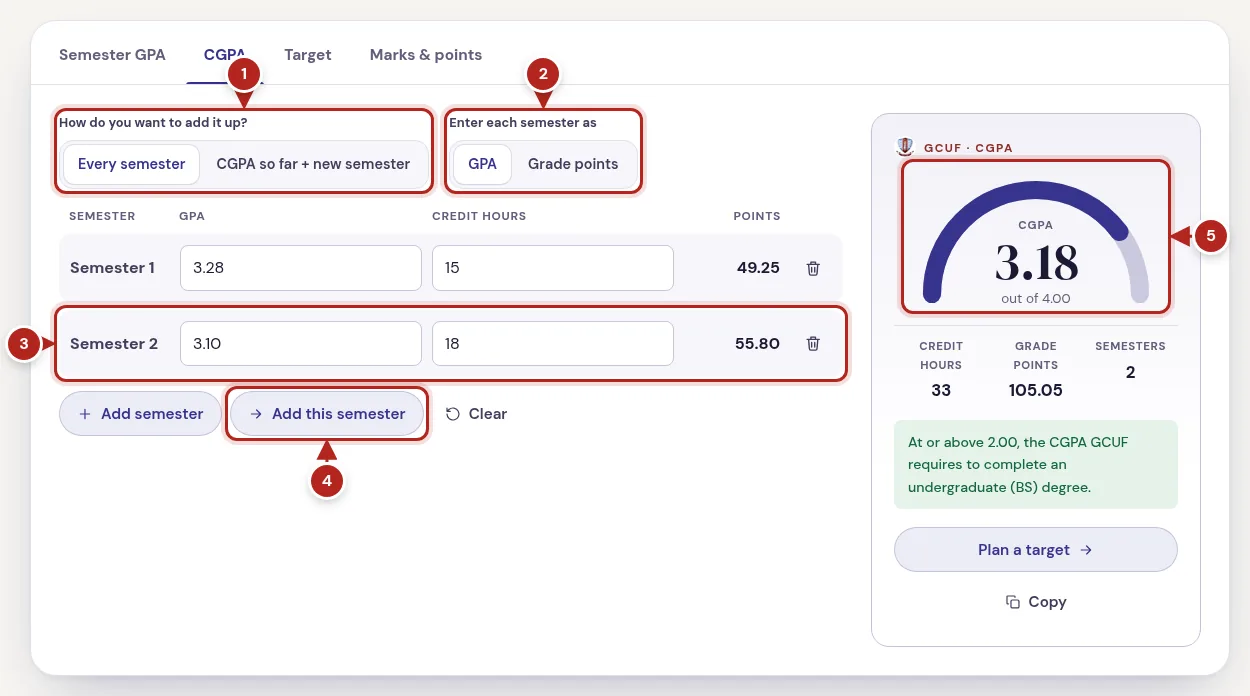
- Semester by semester
- Each semester's GPA and credit hours
- Bring in the semester you just calculated
- Your CGPA and standing
Step 6
Add one semester to your current CGPA
موجودہ سی جی پی اے کے ساتھ نئے سمسٹر کا جی پی اے جوڑیں۔
Know your CGPA already? Skip the list.
- Choose "Current CGPA + new semester".
- Enter your current CGPA and the credit hours behind it, then your new semester's GPA and credit hours.
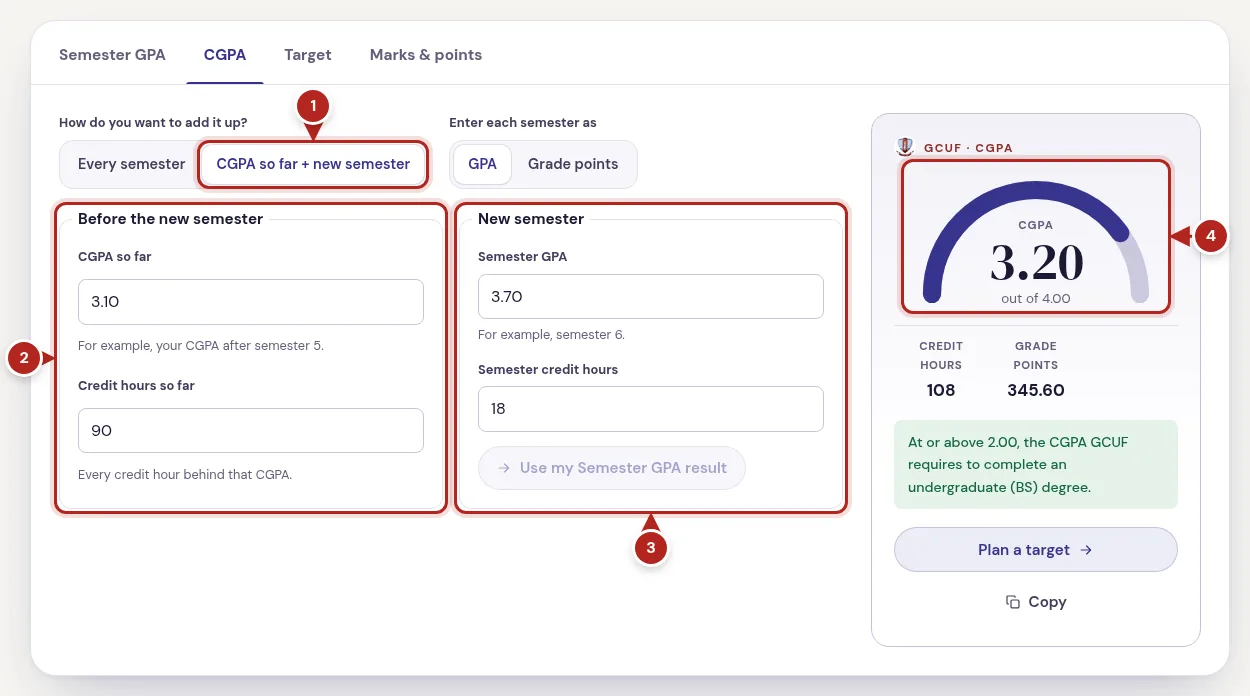
- The quick way
- Your CGPA so far
- The new semester
- Your new CGPA
Step 7
Plan a target CGPA
جانیں کہ مطلوبہ سی جی پی اے کے لیے آگے کتنا جی پی اے چاہیے۔
Find out what you need to reach the CGPA you want.
- Open "Target" and enter your current CGPA and credit hours completed.
- Enter the CGPA you want and the credit hours still to come: your next semester, or everything left in your degree.
- You see the GPA you need and roughly what percentage that is in every course. If it is out of reach you see the best CGPA you can still make.
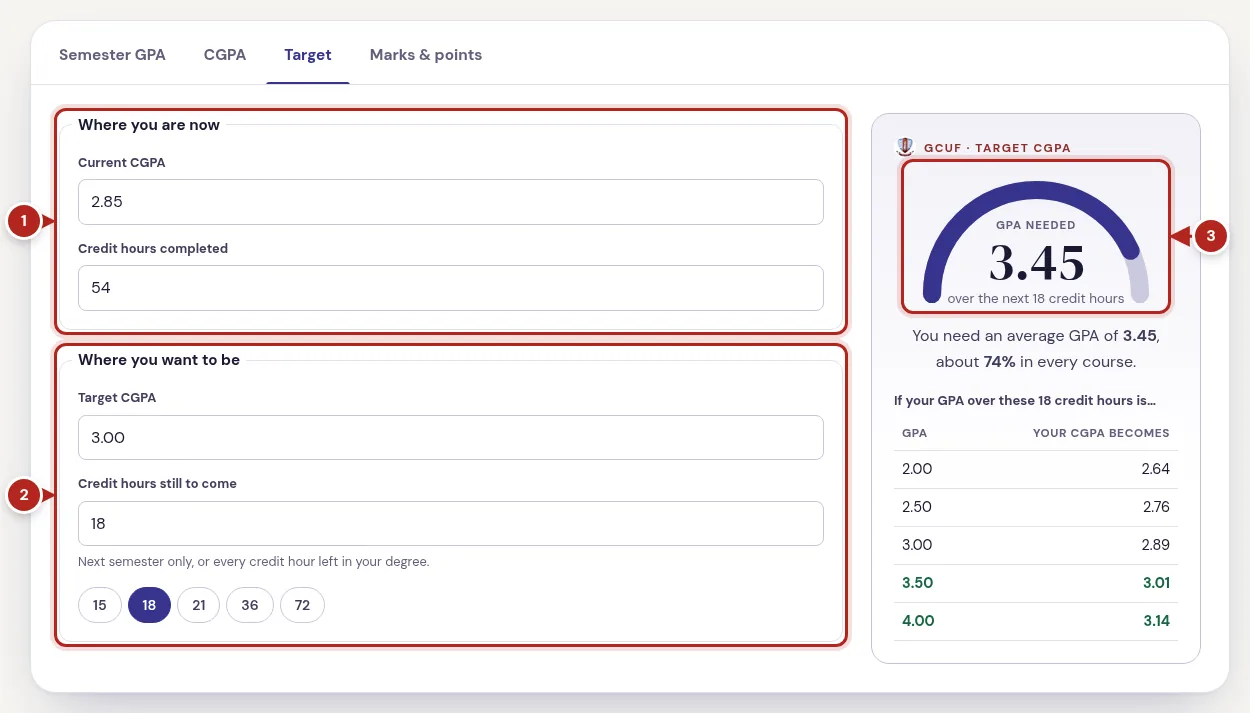
- Where you are now
- Where you want to be
- The GPA you need
Step 8
One course: marks, points and your final exam
ایک مضمون کے نمبر، گریڈ اور فائنل امتحان میں درکار نمبر دیکھیں۔
Check a single course, or plan your final.
- Open "Marks & points", choose the credit hours and type your marks to see the percentage, grade and points.
- The table lists the marks each grade needs in that course.
- In "Plan your final exam", type your mid and sessional marks to see what you need in the final for each grade.
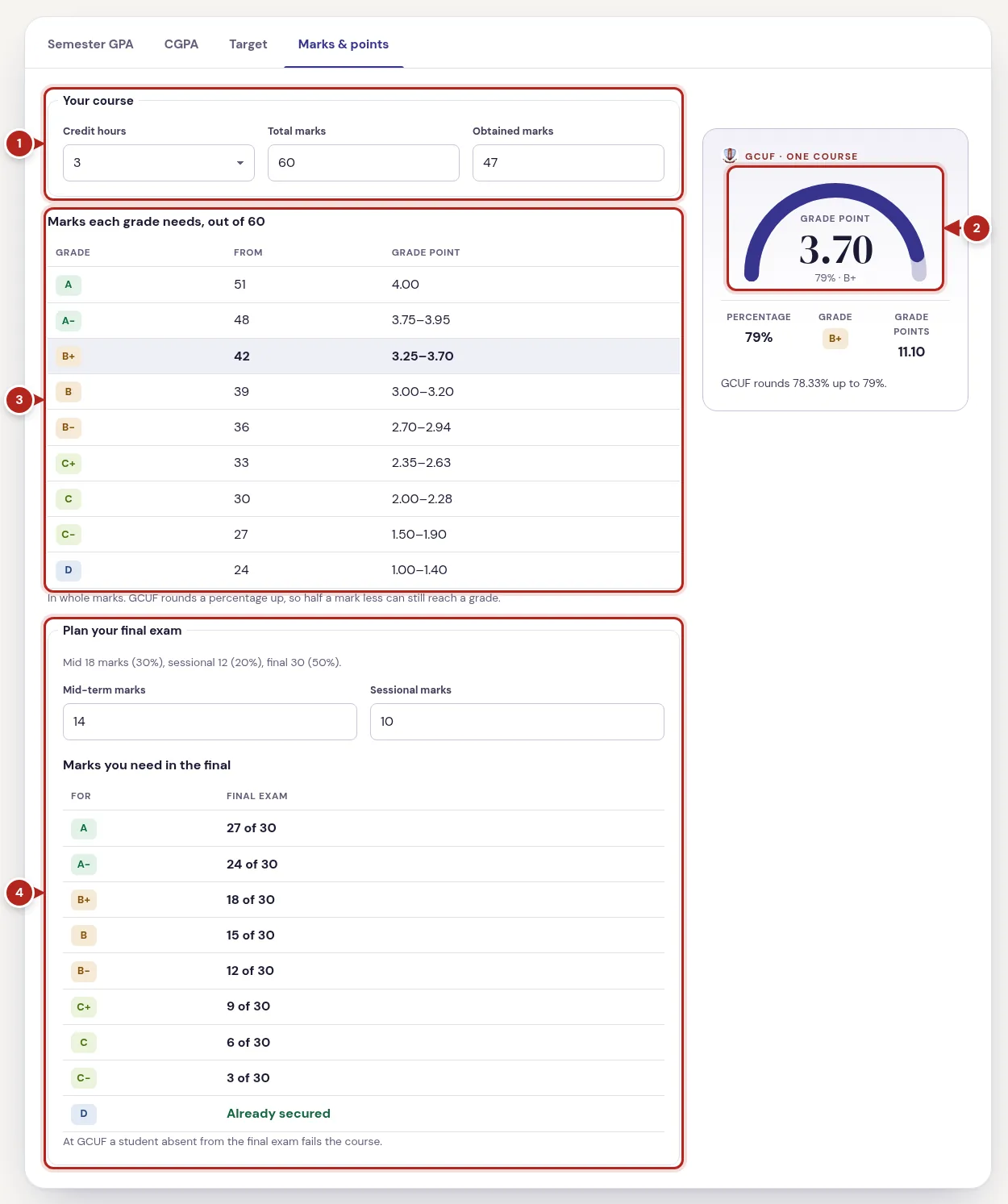
- Your course
- Grade and points
- Marks each grade needs
- Final-exam planner
Step 9
Read the grading table
ہر نمبر کے سامنے اس کا گریڈ اور پوائنٹس — کریڈٹ آورز کے حساب سے۔
Each university has a full table of every mark and what it earns.
- Open "Grading table" from a calculator page or the footer.
- Pick the credit hours of a course to see every mark, its percentage, grade and points.
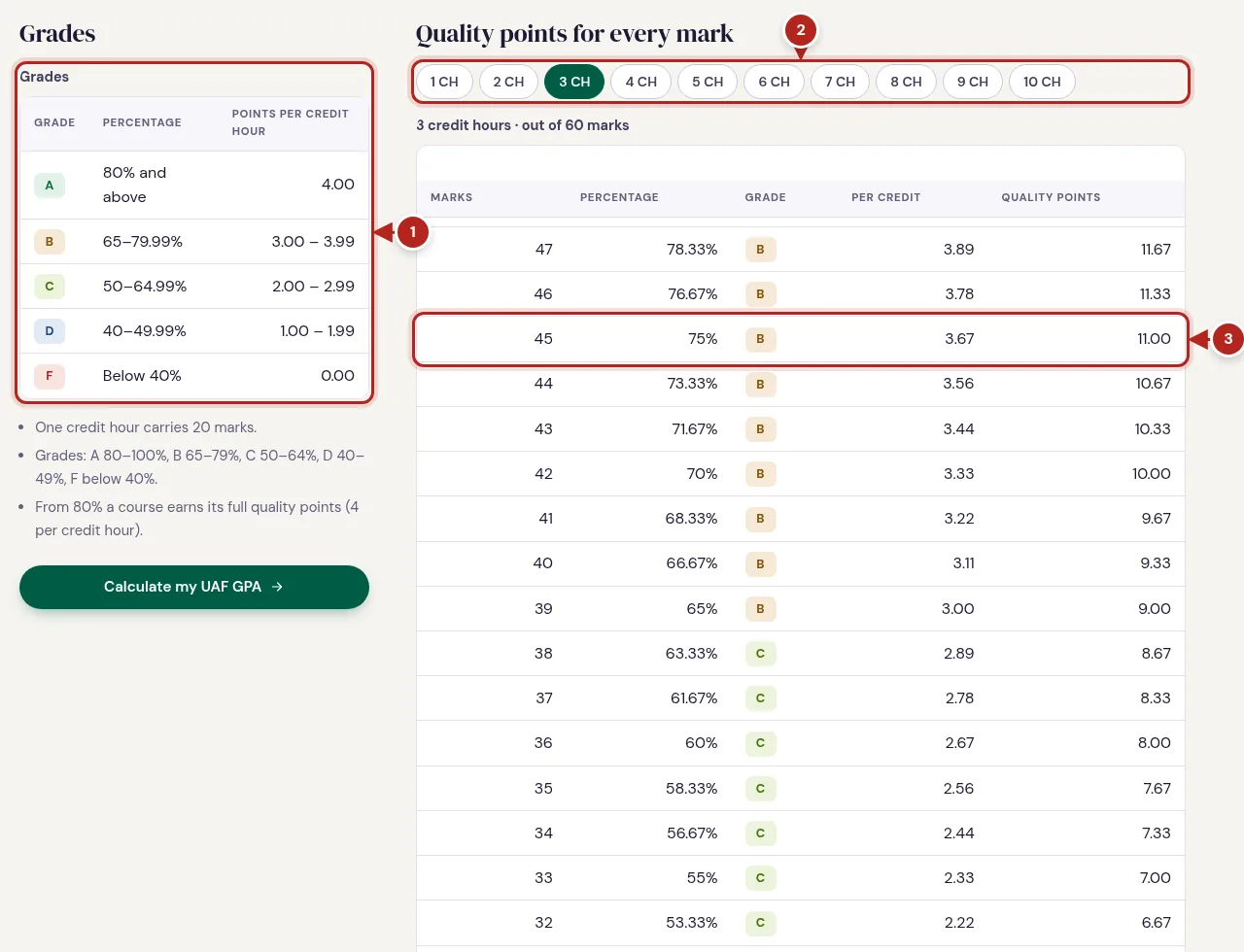
- Grades and their percentages
- Pick the credit hours
- Every mark and its points
Step 10
Print, copy, dark mode and phones
پرنٹ کریں، کاپی کریں، ڈارک موڈ استعمال کریں، یا فون پر چلائیں۔
- "Print" gives a clean result slip; "Copy" copies a short summary to paste anywhere.
- The moon and sun button at the top switches between light and dark.
- On a phone the calculator stacks: courses first, your result below them.
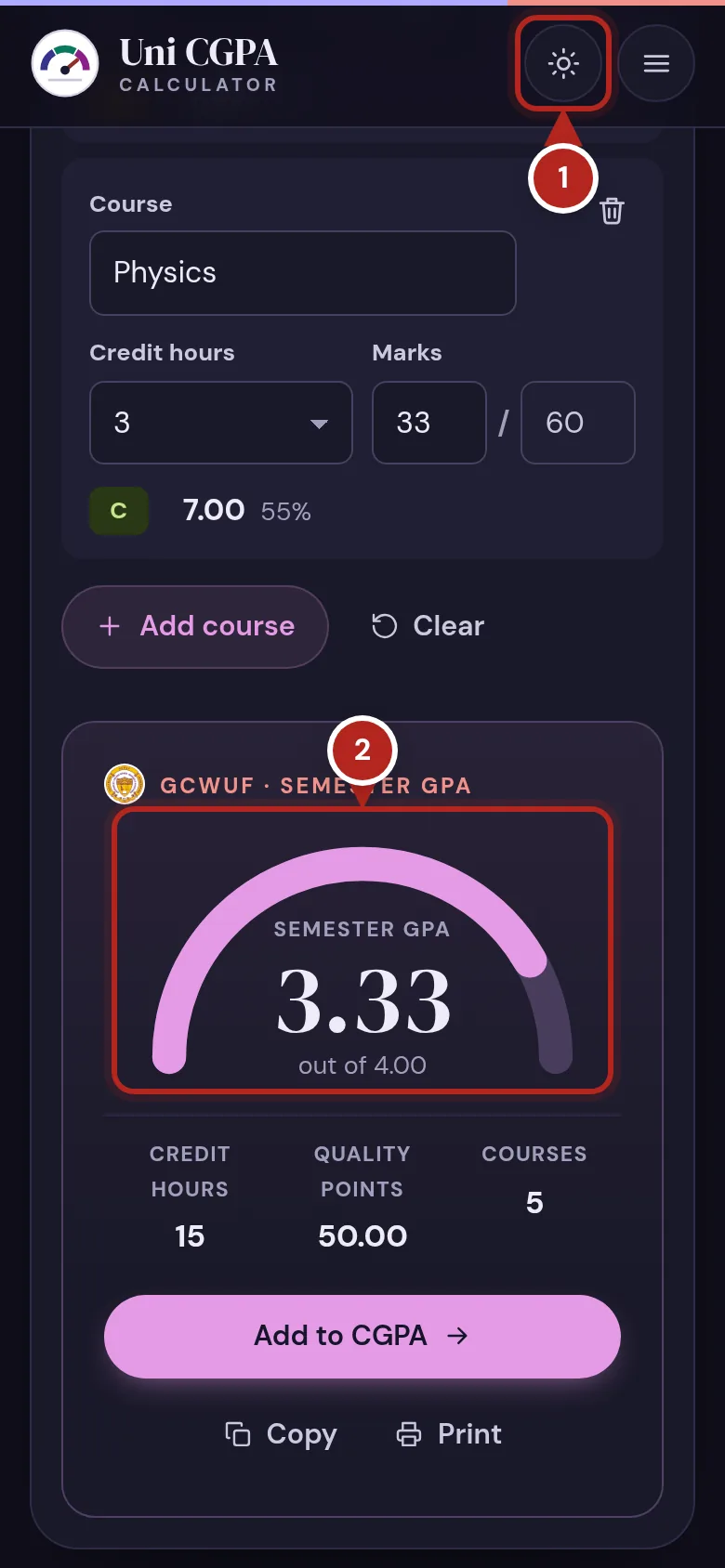
- Light or dark
- Your result on a phone
If something looks wrong
My GPA is a little different from my result card
Check that every course has the right credit hours and that failed courses are included (an F counts with zero points). A withdrawn (W) course is not counted, so leave it out. For a repeated course, follow your university's rule (at GCUF only the better grade counts).
My courses disappeared
They are saved in this browser on this device. A private or incognito window, another browser, or clearing site data starts fresh.
A row shows a red message
The number is outside what the course allows, for example more marks than the total. Fix it and the result updates.